Powered By Blogger
Showing posts with label new android trick. Show all posts

Wednesday, 2 October 2013

How to Clear Cache and Free Up Internal Memory in Android Devices?


After you install an App and start using them, small secondary data files are created automatically. These files are stored inside the device and act as a cache for future use for the apps. Even though these cache files are very small in size initially, they pick up size over a period of time. Cache memory is supposed to speed up app and Android device performance. But too much of cache will have opposite effect. Your device performance will slow down considerably and also you lose lot of internal memory.
There are plenty of cache cleaners available for Androids in the market. But the one which is considered most efficient is App Cache Cleaner. This App cleaner will do a complete scan of all apps inside your device, find the cache files created by all the apps, display the information on the screen and then remove the cache files. App Cache Cleaner is a free app and can be downloaded from Google Playstore or click here to download

Increase internal memory of samsung galaxy ace 


In this tutorial we will guide you step-by-step on how to increase the internal memory of your Samsung Galaxy Ace. Just follow the simple steps given below
Samsung Galaxy Ace is featured with 832 MHz Processor, a RAM of 512 MB, and a 32 GB upgradable storage. Like the previous Samsung’s Smartphones, it has also created a large user base or fan base. With an affordable price range, they also have provided some really good features with an elegant design and stunning look
Android Smartphone are an excellent way to take all your private and important files, images, data, and all other imperative data with you. Thus we can declare that it is one of the finest gadgets in our pocket which has plenty of information regarding you.
So in this tutorial we will be showing you how to increase the internal memory of your Samsung Galaxy Ace. Just follow the simple steps given below
Disclaimer This tutorial will definitely work when using Samsung Galaxy Ace only. While working of it on others is not yet confirmed. On applying this installation to another model or device may give an unwanted result. While applying this update we will not be responsible if anything occurs to your device, so continue at your own risk.
Pre-Requisite Steps for Increasing Internal Memory of Samsung Galaxy Ace Firstly, download MiniTool Partition Wizard app to your computer and then install it. You may download it by just clicking it here.
Step 2
From your Android device disconnect & remove the memory card and insert it in your Computer using a card reader. You must not use USB cable, since this app may not work properly through USBs.
Step 3
Step 4
Now click on SD card and there do the right click on the “Option” icon. Then select the “Delete” option for a complete deletion of data on your SD card.
Step 5
Step 6
Now, choose the file type as FAT32 and there allocate the space with such an amount that you believe you’ll be utilizing.
Step 7
Next, again apply the same procedure as above and choose “Create as: Primary”, so to create a new partition (external). This space will be utilized for storing downloaded apps.
Step 8
Finally, select the “Apply” option to finish the process. After this you may insert your SD card into your Samsung Galaxy Ace.

Expand the Internal Memory Of ur Samsung Galaxy Y Duos GT-S6102


I recently came into a Samsung Galaxy Y Duos phone and the first thing that struck me was the paltry and miserly160MB internal storage that was included in the phone. Well, yes, granted, it is supposed to be a budget phone but 160MB on a smartphone in this day and age is simply outrageous?! Its dual SIM feature, however, made it very difficult for me to pass it over.
Fresh from my exploit expanding the internal memory of my Toshiba Thrive Tablet, i knew there had to be a solution to this irritating development.
And guess what? I was right, damn right!
Though the procedure was tested on a Samsung Galaxy Y Duos GT-S6102, it should work on any Android mobile phone, especially the Galaxy Duos series.
Please proceed with caution.
Again, what we are setting out to do is to make the device recognize the external memory card as an internal memory.

You will need to root your phone first. The very simple procedure can be found here.
Skin of CWM Skin1980-GT-S5360+CWM.zip
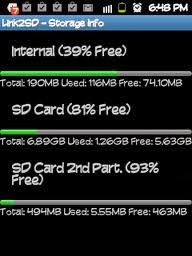
Install the app, Link2SD, from Google app market to your phone Switch off your phone and boot up into recovery mode by pressing the following keys at the same time; Volume up +Home button +lock button Release the buttons immediately the Samsung Galaxy Y Duos logo comes on On the screen labelled ” Android System Recovery”, use the volume key to select “apply update from sd card”, then select “skin1980-G1-S5360+CWN.z” On the screen “ClockworkMod Recovery v”, select “advanced” On the screen “Advanced and Debugging”, select “Partition SD Card” On the screen “For Ext Size”, select the size you will want your new internal memory storage to be. A max size of 1024 MB (1GB) is advised because of stability issues. On the screen labelled “swap size”, select 0M Now you wait a few minutes for your SD card to be partitioned. Afterwards, select “reboot recovery”, then select “reboot system now”. Your phone will reboot. Select link2sd Choose “recreate mount script”, then select “ext3? Reboot your phone
After your phone reboots, you may launch the linksd app again and move installed software to the partition you created by “linking” them.

Please note that you will not notice any increase in the size of your internal memory after this procedure when you check via your phone settings but what it does is that subsequent installations are made directly on your SD card subject to the maximum size you partitioned.
N/b this tips was sent to me by a friend some minutes ago and I tried it ‘tworked magically .

Increase RAM & Internal Memory Using Link2SD + A2SDGUI + Swapper for samsung galaxy y duos

O.K,, I'll give method how to Increase Performance & Save Internal Memory For GT-S6102 [Galaxy Y Duos].
I will use 3 applications for this method..
- Link2SD
- A2SD GUI
- Swapper
Applications can be downloaded from google play..
For more details, Follow this GUIDE :
*
make a nandroid backup using cwm before doing this method

1. We must have 3 partitions on sd card (FAT32, Ext2 & Swap)


 2. Install Custom Kernel (init.d support)

Quote:
You can try iDuos Kernel 1.3.1
Thanks
manoranjan2050 for Great Kernel..
Visit this thread to download iDuos Kernel 1.3.1
http://forum.xda-developers.com/show....php?t=1707029
@ #1 –> Download - > iDuos 1.3.1 Update.Zip

Install iDuos Kernel from CWM
Visit this thread to download CWM
for Galaxy Y Duos
http://forum.xda-developers.com/showpost.php?p=25140720
Thanks Millan.SIS for Great CWM..

How To Install iDuos Kernel 1.3.1 :
a. After download CWM-try1.zip & iDuos 1.3.1_install.zip - - put to root of your sd card
b. Boot Stock Recovery (Press & hold: Power + Volume Up + Home keys & release when sgy duos logo appears)
c. Choose: apply update from sdcard
d. Choose: CWM-try1.zip
e. Choose: install zip from sdcard
f. Choose: choose zip from sdcard
g. Choose: iDuos 1.3.1_install.zip
h. Choose: Yes – Install …
i. Press Back key - - reboot system now
After reboot, check kernel (Settings --> About phone) :
 3. Root Your phone..

Quote:

Download Root from here : http://forum.xda-developers.com/show....php?t=1611830
Thanks To Millan.SIS

How To Root Your phone..
a. After download update_3.zip- - put to the root of your sd card
b. Boot Stock Recovery (Press & hold: Power + Volume Up + Home keys & release when sgy duos logo appears)
c. Choose: apply update from sdcard
d. Choose: update_3.zip
e. reboot system now
f. Please check in app drawer, do you have Superuser icon? If yes, You've already rooted your phone..


4. Install Link2SD                                                                                                      

Quote:

Download From Market @ Play Store (Google play)


How to use Link2SD in this method :
a. After download & Install Link2SD from Google play
b
. Go to : Settings --> Applications --> Development --> Tick USB Debugging & Allow mock locations


c. Run Link2sd & do it like this :


d. Turn on Your phone --> run Link2sd again & check..


5. Install A2SDGUI - Darktremor A2SD GUI

Quote:

Download A2SD GUI From Market @ Play Store (Google play)


How To use A2SDGUI in this method :
a. After download & Install A2SDGUI from Google play..
b. Run A2SDGUIif A2SDGUI can’t start..

Don’t worry..
c
. Reboot Your phone..
d. Boot Stock Recovery (Press & hold: Power + Volume Up + Home keys & release when sgy duos logo appears)
e. Apply update from sdcard --> CWM-try1.zip --> install zip from sd card --> choose zip from sdcard --> dtapps2sd-2.7.5.3-beta04-signed.zip --> Yes – Install --> Reboot system..
Download dtapps2sd-2.7.5.3-beta04-signed.zip from here :
http://forum.xda-developers.com/showthread.php?t=715940
Thanks To tkirton for Great App & Scripts..

f. Run A2SDGUI.. Now A2SDGUI Working..

Don't tick Dalvik Cache on SD-EXT..!!!
Don't tick Dalvik Cache on /cache..!!!                                                                                 6. Increase Performance (Increase of RAM)

Quote:

Download Swapper From Market @ Play Store (Google play)

How To use Swapper in this method :
a. After download & Install Swapper from Google play..
b. Run Swapper Configuration --> Tick Active Swap on Boot --> Swap File Position: SD Card FAT Partition --> Swap file size: 200 --> Save – Wait until finish…!!!


c. Now run A2SDGUI --> System Info:
              
    NOW YOU HAVE MORE PERFORMANCE & YOU CAN SAVE YOUR INTERNAL MEMORY

Root Samsung Galaxy Camera with Odin and CF Auto Root


Galaxy Camera is a different Android device and not one that we’re used to see on Android blogs and web sites. However, since it still runs on Android ROM you can apply root and customization files to your camera device easily. Use this tutorial only if you’re an advanced user.
The Samsung Galaxy Camera doesn’t have support for making phone calls and it is only the latest Android device that runs on Google’s OS. The root files and how to apply them were released by AdamOutler, an XDA Elite Recognized Developer. He took the ‘CF-auto-root’ by Chainfire and  edited it to make it work on the Galaxy Camera device
Before moving to the tutorial, read the guidelines listed below and learn how to successfully configure your computer and your camera for root process                                                                       
       Use this tutorial only on the Samsung Galaxy Camera device. Do not attempt to flash these files on any other Android smartphones or tablets.
  • Note that by rooting your Galaxy Camera, you will void the device warranty and this can be retrieved only by restoring it to stock firmware.
  • This guide might remove all data from your device. Make sure that you’ve transferred all files to your PC.
  • Your computer should have all the Samsung USB Drivers installed. Without these you cannot complete the installation. Note that you can install them using Samsung KIES software, but this app should be disabled while you’re flashing the root files. Alternatively, you can choose to install the Samsung USB drivers from the following links: For Windows 32bit x86 OS | For Windows 64bit x64 OS.
  • Make sure that your camera device battery is fully charged.
  • Disable all antivirus applications that are currently opened on your computer. Such apps are always interfering with root actions.
  • This is a guide that should be completed by an advanced Android user. Do not attempt to flash the files if you’re a novice. Remember that in case you’re having problems with the root process, then you should ask for more help in comments.
  • Also, do not blame us in case something goes wrong during the update and you cannot use the Galaxy Camera because it got bricked in the process. However, in case that happens, you will be able to restore a stock firmware and then the device should work again.

How to root the Samsung Galaxy Camera:

  1. Download the CF Auto Root zip file from HERE. Save the file on your PC desktop.
  2. Extract the contents of the CF Auto Root zip and save them in a single folder on your PC. The new directory should have a file that has a .tar or .tar.md5 extension, and you shouldn’t extract any further than that.
  3. Get the Odin3 v3.04 from HERE. Extract the Odin zip contents to a single folder on your PC desktop screen.
  4. Power off your Galaxy Camera as you will need to boot it into download mode. It can be done like this: remove its battery, re-insert the battery back after 5 seconds and then press the ‘zoom out’, ‘camera’ and ‘power’ buttons simultaneously.
  5. Next, launch Odin application on your PC. It can be found in the Odin folder you created at step 3.
  6. Use the USB cable and connect the Galaxy Camera to your computer. Odin window should show a message saying ‘added!!’, which means that the USB drivers have been installed. Get to the next step. NOTE: If that message does not show up, then you will have to try another USB port or you can choose to re-install the USB Drivers. Repeat the tutorial when you’re done.
  7. In Odin, click on ‘PDA’. Now browse your PC for the file CF-Auto-Root-gd1-ekgc100.tar.md5 and load it into ODIN; that’s the file you extracted at step 2. Don’t change any default settings in ODIN and make sure that the Re-partition option is not selected.
  8. When the file is loaded into ODIN you can click the ‘START’ button and ODIN will start to flash the root files.
  9. After the root is complete, Odin will display the ‘Pass’ alert and the Galaxy Camera will automatically restart.
  10. Now you can unplug the device from computer as the Samsung boot logo is displayed.
  11. That’s it, you’ve managed to successfully flash all the required files in order to achieve root access for your Samsung Galaxy Camera.
Note: If Odin doesn’t complete the root or it case it display a message that says ‘Fail’ then you should unplug the camera from computer. Close Odin now and then remove the device’s battery for 5 seconds. Re-insert the camera battery and after that you should boot again in Download mode and repeat the tutorial guide.
Eventually you should be able to root the Galaxy Camera. In case yo cannot complete the root, then you should ask for more help in our comments field and we will try to give you any solutions. Remember that this root means that you’ve voided your Galaxy Camera warranty and, in order to get it back you should restore it to a stock firmware. A tutorial guide that teaches you how to restore your Samsung Galaxy Camera to Android 4.1.1 stock firmware can be found HERE.

Update Samsung Conquer 4G D600 with Official FC 17 Firmware (Root solution)

The Samsung Conquer 4G D600 is a low range, budget friendly smartphone that comes with decent performances for its users. But, thanks to Sprint and Samsung, which has just released the official FC 17 OS update for the same device, you can now improve the capabilities of your phone. This firmware is coming more to resolve some issues from the Conquer 4G old system, numerous bug fixes being included in the software. So, during the following we will be checking on how to apply the same on your handset, all being explained in this step by step guide.
Furthermore, after showing how to install the official FC 17 OS update I will detail a solution for rooting your Conquer 4G that runs on the new firmware; in this way you will be able to take full advantage of your phone’s performances. Also, gaining root access is required if you will want to flash a custom ROM into the system, or for other basic operations, so it’s really not an option for you. Read all the lines from this tutorial and do all as explained, or else you can brick your phone.
Being an official update released for your device, applying the same will not make you void the Samsung warranty. Furthermore, if you have a rooted Conquer 4G D600, the root access will be revoked and you will have to gain it back but only by following a guide that is designed to work for the new software (like this one from here). It’s true that once you root the phone again the warranty will be void, but at least you are safe during the update procedure. Remember that the warranty can be restored as soon as you re-lock the bootloader.
As already stated the FC 17 firmware is provided by Sprint and will bring enhancements for the old OS. It will remove all the bloat ware such as Maps, Spectrum, Water, waveform live wallpapers along with the magic app and it will resolve the security related issues and also fix most of the bugs which are there currently. Furthermore, this in an OTA (Over The Air) update, but in case you didn’t receive it, this method will teach you how to manually update the Samsung Conquer 4G D600 with official FC 17 firmware.
As usual, before you get to work, there are some preparations tasks you must consider. I have listed all the things that must be completed so that you can safely make through the update and rooting operations, so check them out:
  • Backup the data stored on your phone. There are many ways in which you can do that but here are our recommendations.
  • Download SMS backup and restore.
  • Download Call log backup and restore.
  • Sync contacts with Gmail account.
  • Use the PC or the phone’s SD card for the pictures, or videos files.
  • Backup the current ROM by using the clockworkmod recovery tool.
  • Then, charge the phone’s battery, or check if there is at least 70 % power.
  • Enable USB debugging in your smartphone: “Settings -> Applications -> Development -> USB debugging”.
  • Deactivate the security tools from the computer and from your Samsung Conquer 4G.
That being said you can now begin the proper step by step guide. As I have already mentioned, this guide will be divided in two parts: the one that will teach you how to update your phone and the other one that will show you how to root the same. The root operation is optional.

How to update Samsung Conquer 4G D600 with Official FC 17 Firmware

  1. Download the update package from here.
  2. Download Odin.
  3. Save the file on the computer.
  4. Connect the handset with the PC.
  5. On the computer open Odin.
  6. Reboot the handset by entering in download mode (hold down the Volume Up, Volume Down and Menu buttons while powering up).
  7. Once you do this the ID : COM section from Odin should turn yellow.
  8. In Odin you must to check the following options and load the files downloaded before: “OPS” for the SPH-D600_FC17_CWM.ops file and “One package” for the SPH-D600_FC17_CWM.tar.md5 file.
  9. Now, just click on “Start”.
  10. During the process the home screen should appear. When it does disconnect the phone from the PC and reboot it by entering in recovery mode.
  11. The recovery mode menu can be reached by holding the Volume Up button and the Menu Key while powering the handset on.
  12. In recovery mode choose to perform a full wipe and then choose “reboot system now”.

How to Root the Samsung Conquer 4G D600 that runs the Official FC 17 Firmware

  1. Connect the phone to the computer.
  2. From the files you downloaded in the up mentioned guide select the “Superuser-3.0.7-efghi-signed.zip” and the “su-bin-3.0.3.2-efghi-signed.zip” ones and copy paste them to the handset’s SD card.
  3. Disconnect the smartphone from the PC.
  4. Reboot it by entering in recovery mode (follow the instructions from above).
  5. From the recovery mode menu select “install zip from sd card” and “choose zip from sd card” and select the two files copied before (see step 2).
  6. When you will be back on the recovery menu select “go back” and “reboot system now”.
That was all. You should now have the official FC 17 Firmware installed on your Samsung Conquer 4G D600, which should also be rooted. As you could see the operations wasn’t hard to complete, though there are many steps to take care of. If somehow there were problems, or issues share it with us and we will do all that we can in order to resolve them. Also, stay close for further how to guides.

Android v4.3 Jelly Bean Update for Samsung Galaxy S4 in October; Galaxy S3 and Galaxy Note 2 

Hugo Barra, director of product management of Google, unveils Android 4.1 "Jelly Bean" mobile operating system during Google I/O 2012 Conference at Moscone Center.
Weeks after hearing unconfirmed reports that Android 4.3 Jelly update would be released to Samsung flagship devices - Galaxy S4, Galaxy Note 2, Galaxy S3, a French carrier network has finally revealed a detailed roadmap of Android V4.3 update release plan to top smartphones in the industry.
SFR, a France based telecom firm has posted a time-table of Android v4.3 release plans to flagship smartphones of Samsung as well as HTC.
It claims that Samsung's 2013 marquee smartphone, Galaxy S4 will get the Android v4.3 update in October, and then the 2012 models - Galaxy S3 and Galaxy Note 2 are certain to receive the new updates latest by November or by the end of December. The firmware will be made available via Samsung KIES and through FOTA (Firmware-Over-The-Air).
The road-map also showed that the HTC One will taste the new Jelly Bean flavour next month. However, the table did not reveal whether the new Android OS update roll out is region specific or will be released globally.
Once updated with Android v4.3, all the three - Galaxy S4, Galaxy S3 and Galaxy Note 2 - will be compatible with the recently released Galaxy Gear. As of now, Galaxy Note 3 and Galaxy Note 10.1 [2014 edition] are the only devices capable of syncing new Samsung smartwatch.
According to reports, the newly unveiled Android v4.4 Kit Kat is said to release on 14 October and is expected to get released to Samsung flagship smartphones and other high-end devices only next year(probably by 2014, first-quarter). 
Key features of Android v4.3 Jelly Bean:
Keyboard and input: The keypad is said get an improve algorithm for tap- typing making text messaging less cumbersome. It is also said to enhance gamepad.
Dial Pad: enhanced Auto-complete feature will predict more accurate phone-nmber and names. Users can go to phone settings to enable or disable the option.
Location: Feature will detect hot-spots without turning on the Wi-Fi mode all the time.
Settings: New tab is introduced to let users check which apps are disabled or not.
Language support: More dialects are made enabled in the new Jelly Bean OS, now it can support Hindi as well.
Graphics: V4.3 will now enable smartphones to support the industry's latest Open GL ES 3.0 graphics.
Network: Bluetooth Smart( Low Energy) support will make smartphone to use less power while transferring data.   
Daydream:  This new feature will enable user to browse through the photos via albums.
Restricted Access: Once updated with 4.3 Jelly Bean, users will create profiles for guest user with restricted access to apps and content.
Android v4.3 Roll-out Road Map for Samsung and HTC Smartphones:
Company Smartphone model Expected Release Roll-out medium
Samsung Galaxy S4 In October KIES + FOTA
Samsung Galaxy S3 (3G & 4G) Around November/December KIES + FOTA
Samsung Galaxy Note 2 (3G & 4G) Around November/December KIES + FOTA
HTC HTC One  Around October FOTA


  Tricks for New (and Old) Android Phones

There's a new crop of Android phones out there — and a new set of hidden shortcuts to make using your phone even easier. And even if you have an older model, I'll share my favorite tools to get you the same functionality you would get with a brand-new device.

Camera Tricks
One of the handiest things about modern phones is that you now have a reasonably high quality camera with you at all times. But as cool as that is, it can be incredibly frustrating how long it takes for the camera to launch. How many times has this happened to you: By the time you've woken up the phone, unlocked your screen, and opened the camera app, you've missed the moment.
Launch the camera in just one move. On most phones running the latest Android OS, you can customize your lock screen for fast access. On the Samsung SIII, for example, you can simply press and hold the center of the lock screen, rotate the phone 90 degrees while still holding the center of the screen — and boom; the camera launches. To enable this feature, go to Settings, Security, Lock Screen Options, and then turn on CAMERA QUICK ACCESS. On older android phones you can use an app like WidgetLocker to get the camera icon onto your lock screen. Added bonus: With WidgetLocker, you can customize your lock screen with whatever functions you like to access quickly.
Voice Control. Once you get the camera fired up, many newer Androids also offer voice control. Set your camera on a tripod or Gorillapod and say "Shoot." After a one-second delay (just long enough to smile), the camera will snap the shot. This is great for self-portraits and group shots.
If you have an older Android phone, Camera ZOOM FX gives you the same voice control, plus some awesome additional powers — stabilizer, time lapse, and Burst Mode, which lets you take up to 10 shots in a second.
Screen Capture
Say you want to do a screen grab of a web page — or maybe you have a cute sequence of texts you want to save forever — whatever. Depending on the model and flavor of Android you have, some key combos will do the trick. On some versions, press the Home key and Power buttons at the same time; on others, it's Volume Down and Power. On older phones, you can get an app like Screenshot It, which enables you to capture what's on your phone's screen, just not with the quick key combos of newer phones.
[Related: True/False: Never Sell Your Old Phone]

Fast Reboot
Powering down your phone normally takes two moves, and restarting takes a third. But if you hold down the power button for 10 seconds, it'll reboot with just one move. This should work on most Android phones.
Managing Battery Life & Speed
The best way to improve your phone's battery life and speed is to keep the number of open apps to a minimum. But how do you know what's open? Answer: The Task Manager lists the programs that are currently operating in the background, draining your battery. But instead of scrolling through menus to find the Task Manager, you can launch it immediately by holding down the Home key. You should now be able to see a list of all apps that are currently running. From the same screen, you can close anything that isn't mission critical

Samsung Galaxy S3 12 New Tricks Running Android 4.1/4.2 Jelly Bean


Samsung Galaxy S3 runs Android 4.1 or 4.2 Jelly Bean and owners can get such firmware from both official sources and custom ROM developers. If your Galaxy S3 is already running Android Jelly Bean, there are new additional tricks that wasn't included before which you should know about.
Reuters

To help you perform a root on your International Samsung Galaxy S3 LTE running Android 4.1.2 Jelly Bean, here is an easy-to-follow step by step tutorial.

1.      Make it Snappy
Reduce the animation scale of the Galaxy S3 to make it quicker and snappier. Go to "Settings > Developer Options." Change the Window Animation Scale, Transition Animation Scale and Animator Duration Scale.
2.      Release Memory
Clear the RAM to release memory and kill applications which are not in use. Press and hold the "Home" key then press "RAM." Select "Clear Memory."

3.      Reduce Background Applications
Remove applications you do not use frequently which many of them runs in the background reducing battery level and consuming memory. Go to "Settings > Application manager > Select the app and uninstall.
4.      Maximise the Camera
Use the "Shooting Mode" on your Galaxy S3 such as "Panorama" and play with different kinds of image capturing techniques.
5.      Anti-Shake
Enable the "Anti-shake" feature for sharper image capturing. The feature also works with video recording.
6.      Personalise the Camera Buttons
Inside the camera app, click the "wand" icon and customise the camera buttons to create easy access shortcuts.
7.      Screenshot by your Palm
Another way to take screenshot of your phone is to wave your palm in front of the screen. To activate this feature, go to "Settings > Motion > Palm Swipe to Capture."
8.      Give It Some Rest
Restart the device every month to reduce crashes and glitches in the system. Similar to what happens on PCs, smartphones need to free itself from loads of applications and erase cache memory.
 9   Touch and Hold Power Buttons
Wi-Fi, Bluetooth and other icons located at the notifications shade are now capable of directing you to their own settings. Simply press and hold then the icon will bring up the system configuration for the icon.
10.  Multiple Time Settings
If you want to set several time from different places, tap and hold the clock on the notifications shade and add or delete local times whenever you want.
11.  Audio Applications
Enable this feature to let the Galaxy S3 display applications using audio output on the notifications shade. Go to "Settings > Accessory > Audio Applications."
12.  Explore Your Device
There are more things you can with your Galaxy S3 and it only takes some exploration. Check out most functions on your settings such as "Blocking Mode", "Power Saving" and "Motion." Whenever you are in an application, try using gestures such as pinching, double tap, hold and tap, zooming in and two-finger scrolling. Some applications have secret actions when directed by gestures.