Powered By Blogger
Showing posts with label new news. Show all posts

Wednesday, 2 October 2013

How To Update Hardware Drivers In Windows 7 and 8

0 How To Update Hardware Drivers In Windows 7 and 8 Here are simple and precise steps on how to update hardware drivers in windows 7 and windows 8 easily and fast like a professional.
Slimdrivers is one of the best drivers to update your hardwares with. Though there are other good ones too but this one stands out. Its simple operation and exellent service makes it a choice to go for always. It works comfortably with windows XP,7,8,vista. These simple 3 steps will take you through all the process.
STEP 1
Download and install the software. You can download it right now here http://download.cnet.com/SlimDrivers-Free/3000-18513_4-75279940.html?part=dl-0remember that it is free.
STEP 2
Open the slimdriver from windows start button. Begin the scanning. The software now will go round and check all the hardware component and it will go to the drivers official page to search for the latest hardware drivers. Now to step 3.
STEP 3
All the available updates will be clearly listed by the slimdriver. When they all show up,click on download for the update of your choice. Then the update will be downloaded smoothly from their site. Ensure to reboot the PC after installation of the hardware update. Its safer doing this,it aids the download adjust comfortably in your PC.
This is how you can update your hardware drivers in windows 7 and windows 8.
Slimdrivers is a great tool especially if you use a laptop. It helps you to easily update things like Bluetooth,Wi-Fi,USB,Graphic,Webcams drivers. It is one of the top most rated tool on CNET,Softtonic,Brothersoft and a few other sites. And the great thing about it also is that it is absolutely FREE.

How to Clear Cache and Free Up Internal Memory in Android Devices?


After you install an App and start using them, small secondary data files are created automatically. These files are stored inside the device and act as a cache for future use for the apps. Even though these cache files are very small in size initially, they pick up size over a period of time. Cache memory is supposed to speed up app and Android device performance. But too much of cache will have opposite effect. Your device performance will slow down considerably and also you lose lot of internal memory.
There are plenty of cache cleaners available for Androids in the market. But the one which is considered most efficient is App Cache Cleaner. This App cleaner will do a complete scan of all apps inside your device, find the cache files created by all the apps, display the information on the screen and then remove the cache files. App Cache Cleaner is a free app and can be downloaded from Google Playstore or click here to download

Increase internal memory of samsung galaxy ace 


In this tutorial we will guide you step-by-step on how to increase the internal memory of your Samsung Galaxy Ace. Just follow the simple steps given below
Samsung Galaxy Ace is featured with 832 MHz Processor, a RAM of 512 MB, and a 32 GB upgradable storage. Like the previous Samsung’s Smartphones, it has also created a large user base or fan base. With an affordable price range, they also have provided some really good features with an elegant design and stunning look
Android Smartphone are an excellent way to take all your private and important files, images, data, and all other imperative data with you. Thus we can declare that it is one of the finest gadgets in our pocket which has plenty of information regarding you.
So in this tutorial we will be showing you how to increase the internal memory of your Samsung Galaxy Ace. Just follow the simple steps given below
Disclaimer This tutorial will definitely work when using Samsung Galaxy Ace only. While working of it on others is not yet confirmed. On applying this installation to another model or device may give an unwanted result. While applying this update we will not be responsible if anything occurs to your device, so continue at your own risk.
Pre-Requisite Steps for Increasing Internal Memory of Samsung Galaxy Ace Firstly, download MiniTool Partition Wizard app to your computer and then install it. You may download it by just clicking it here.
Step 2
From your Android device disconnect & remove the memory card and insert it in your Computer using a card reader. You must not use USB cable, since this app may not work properly through USBs.
Step 3
Step 4
Now click on SD card and there do the right click on the “Option” icon. Then select the “Delete” option for a complete deletion of data on your SD card.
Step 5
Step 6
Now, choose the file type as FAT32 and there allocate the space with such an amount that you believe you’ll be utilizing.
Step 7
Next, again apply the same procedure as above and choose “Create as: Primary”, so to create a new partition (external). This space will be utilized for storing downloaded apps.
Step 8
Finally, select the “Apply” option to finish the process. After this you may insert your SD card into your Samsung Galaxy Ace.

Expand the Internal Memory Of ur Samsung Galaxy Y Duos GT-S6102


I recently came into a Samsung Galaxy Y Duos phone and the first thing that struck me was the paltry and miserly160MB internal storage that was included in the phone. Well, yes, granted, it is supposed to be a budget phone but 160MB on a smartphone in this day and age is simply outrageous?! Its dual SIM feature, however, made it very difficult for me to pass it over.
Fresh from my exploit expanding the internal memory of my Toshiba Thrive Tablet, i knew there had to be a solution to this irritating development.
And guess what? I was right, damn right!
Though the procedure was tested on a Samsung Galaxy Y Duos GT-S6102, it should work on any Android mobile phone, especially the Galaxy Duos series.
Please proceed with caution.
Again, what we are setting out to do is to make the device recognize the external memory card as an internal memory.

You will need to root your phone first. The very simple procedure can be found here.
Skin of CWM Skin1980-GT-S5360+CWM.zip
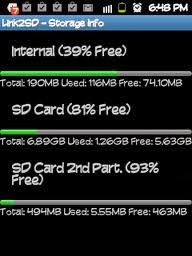
Install the app, Link2SD, from Google app market to your phone Switch off your phone and boot up into recovery mode by pressing the following keys at the same time; Volume up +Home button +lock button Release the buttons immediately the Samsung Galaxy Y Duos logo comes on On the screen labelled ” Android System Recovery”, use the volume key to select “apply update from sd card”, then select “skin1980-G1-S5360+CWN.z” On the screen “ClockworkMod Recovery v”, select “advanced” On the screen “Advanced and Debugging”, select “Partition SD Card” On the screen “For Ext Size”, select the size you will want your new internal memory storage to be. A max size of 1024 MB (1GB) is advised because of stability issues. On the screen labelled “swap size”, select 0M Now you wait a few minutes for your SD card to be partitioned. Afterwards, select “reboot recovery”, then select “reboot system now”. Your phone will reboot. Select link2sd Choose “recreate mount script”, then select “ext3? Reboot your phone
After your phone reboots, you may launch the linksd app again and move installed software to the partition you created by “linking” them.

Please note that you will not notice any increase in the size of your internal memory after this procedure when you check via your phone settings but what it does is that subsequent installations are made directly on your SD card subject to the maximum size you partitioned.
N/b this tips was sent to me by a friend some minutes ago and I tried it ‘tworked magically .

Increase RAM & Internal Memory Using Link2SD + A2SDGUI + Swapper for samsung galaxy y duos

O.K,, I'll give method how to Increase Performance & Save Internal Memory For GT-S6102 [Galaxy Y Duos].
I will use 3 applications for this method..
- Link2SD
- A2SD GUI
- Swapper
Applications can be downloaded from google play..
For more details, Follow this GUIDE :
*
make a nandroid backup using cwm before doing this method

1. We must have 3 partitions on sd card (FAT32, Ext2 & Swap)


 2. Install Custom Kernel (init.d support)

Quote:
You can try iDuos Kernel 1.3.1
Thanks
manoranjan2050 for Great Kernel..
Visit this thread to download iDuos Kernel 1.3.1
http://forum.xda-developers.com/show....php?t=1707029
@ #1 –> Download - > iDuos 1.3.1 Update.Zip

Install iDuos Kernel from CWM
Visit this thread to download CWM
for Galaxy Y Duos
http://forum.xda-developers.com/showpost.php?p=25140720
Thanks Millan.SIS for Great CWM..

How To Install iDuos Kernel 1.3.1 :
a. After download CWM-try1.zip & iDuos 1.3.1_install.zip - - put to root of your sd card
b. Boot Stock Recovery (Press & hold: Power + Volume Up + Home keys & release when sgy duos logo appears)
c. Choose: apply update from sdcard
d. Choose: CWM-try1.zip
e. Choose: install zip from sdcard
f. Choose: choose zip from sdcard
g. Choose: iDuos 1.3.1_install.zip
h. Choose: Yes – Install …
i. Press Back key - - reboot system now
After reboot, check kernel (Settings --> About phone) :
 3. Root Your phone..

Quote:

Download Root from here : http://forum.xda-developers.com/show....php?t=1611830
Thanks To Millan.SIS

How To Root Your phone..
a. After download update_3.zip- - put to the root of your sd card
b. Boot Stock Recovery (Press & hold: Power + Volume Up + Home keys & release when sgy duos logo appears)
c. Choose: apply update from sdcard
d. Choose: update_3.zip
e. reboot system now
f. Please check in app drawer, do you have Superuser icon? If yes, You've already rooted your phone..


4. Install Link2SD                                                                                                      

Quote:

Download From Market @ Play Store (Google play)


How to use Link2SD in this method :
a. After download & Install Link2SD from Google play
b
. Go to : Settings --> Applications --> Development --> Tick USB Debugging & Allow mock locations


c. Run Link2sd & do it like this :


d. Turn on Your phone --> run Link2sd again & check..


5. Install A2SDGUI - Darktremor A2SD GUI

Quote:

Download A2SD GUI From Market @ Play Store (Google play)


How To use A2SDGUI in this method :
a. After download & Install A2SDGUI from Google play..
b. Run A2SDGUIif A2SDGUI can’t start..

Don’t worry..
c
. Reboot Your phone..
d. Boot Stock Recovery (Press & hold: Power + Volume Up + Home keys & release when sgy duos logo appears)
e. Apply update from sdcard --> CWM-try1.zip --> install zip from sd card --> choose zip from sdcard --> dtapps2sd-2.7.5.3-beta04-signed.zip --> Yes – Install --> Reboot system..
Download dtapps2sd-2.7.5.3-beta04-signed.zip from here :
http://forum.xda-developers.com/showthread.php?t=715940
Thanks To tkirton for Great App & Scripts..

f. Run A2SDGUI.. Now A2SDGUI Working..

Don't tick Dalvik Cache on SD-EXT..!!!
Don't tick Dalvik Cache on /cache..!!!                                                                                 6. Increase Performance (Increase of RAM)

Quote:

Download Swapper From Market @ Play Store (Google play)

How To use Swapper in this method :
a. After download & Install Swapper from Google play..
b. Run Swapper Configuration --> Tick Active Swap on Boot --> Swap File Position: SD Card FAT Partition --> Swap file size: 200 --> Save – Wait until finish…!!!


c. Now run A2SDGUI --> System Info:
              
    NOW YOU HAVE MORE PERFORMANCE & YOU CAN SAVE YOUR INTERNAL MEMORY

GTA 5.exe


Download from Depositfiles.com:
http://depositfiles.com/files/ufkebr8pm
Always check downloaded files with antivirus
Source site, visit it if you need a password:
Still need a password? Filecrop can help you - Click Here and look for the password on all sites found, it should be there!

Root Samsung Galaxy Camera with Odin and CF Auto Root


Galaxy Camera is a different Android device and not one that we’re used to see on Android blogs and web sites. However, since it still runs on Android ROM you can apply root and customization files to your camera device easily. Use this tutorial only if you’re an advanced user.
The Samsung Galaxy Camera doesn’t have support for making phone calls and it is only the latest Android device that runs on Google’s OS. The root files and how to apply them were released by AdamOutler, an XDA Elite Recognized Developer. He took the ‘CF-auto-root’ by Chainfire and  edited it to make it work on the Galaxy Camera device
Before moving to the tutorial, read the guidelines listed below and learn how to successfully configure your computer and your camera for root process                                                                       
       Use this tutorial only on the Samsung Galaxy Camera device. Do not attempt to flash these files on any other Android smartphones or tablets.
  • Note that by rooting your Galaxy Camera, you will void the device warranty and this can be retrieved only by restoring it to stock firmware.
  • This guide might remove all data from your device. Make sure that you’ve transferred all files to your PC.
  • Your computer should have all the Samsung USB Drivers installed. Without these you cannot complete the installation. Note that you can install them using Samsung KIES software, but this app should be disabled while you’re flashing the root files. Alternatively, you can choose to install the Samsung USB drivers from the following links: For Windows 32bit x86 OS | For Windows 64bit x64 OS.
  • Make sure that your camera device battery is fully charged.
  • Disable all antivirus applications that are currently opened on your computer. Such apps are always interfering with root actions.
  • This is a guide that should be completed by an advanced Android user. Do not attempt to flash the files if you’re a novice. Remember that in case you’re having problems with the root process, then you should ask for more help in comments.
  • Also, do not blame us in case something goes wrong during the update and you cannot use the Galaxy Camera because it got bricked in the process. However, in case that happens, you will be able to restore a stock firmware and then the device should work again.

How to root the Samsung Galaxy Camera:

  1. Download the CF Auto Root zip file from HERE. Save the file on your PC desktop.
  2. Extract the contents of the CF Auto Root zip and save them in a single folder on your PC. The new directory should have a file that has a .tar or .tar.md5 extension, and you shouldn’t extract any further than that.
  3. Get the Odin3 v3.04 from HERE. Extract the Odin zip contents to a single folder on your PC desktop screen.
  4. Power off your Galaxy Camera as you will need to boot it into download mode. It can be done like this: remove its battery, re-insert the battery back after 5 seconds and then press the ‘zoom out’, ‘camera’ and ‘power’ buttons simultaneously.
  5. Next, launch Odin application on your PC. It can be found in the Odin folder you created at step 3.
  6. Use the USB cable and connect the Galaxy Camera to your computer. Odin window should show a message saying ‘added!!’, which means that the USB drivers have been installed. Get to the next step. NOTE: If that message does not show up, then you will have to try another USB port or you can choose to re-install the USB Drivers. Repeat the tutorial when you’re done.
  7. In Odin, click on ‘PDA’. Now browse your PC for the file CF-Auto-Root-gd1-ekgc100.tar.md5 and load it into ODIN; that’s the file you extracted at step 2. Don’t change any default settings in ODIN and make sure that the Re-partition option is not selected.
  8. When the file is loaded into ODIN you can click the ‘START’ button and ODIN will start to flash the root files.
  9. After the root is complete, Odin will display the ‘Pass’ alert and the Galaxy Camera will automatically restart.
  10. Now you can unplug the device from computer as the Samsung boot logo is displayed.
  11. That’s it, you’ve managed to successfully flash all the required files in order to achieve root access for your Samsung Galaxy Camera.
Note: If Odin doesn’t complete the root or it case it display a message that says ‘Fail’ then you should unplug the camera from computer. Close Odin now and then remove the device’s battery for 5 seconds. Re-insert the camera battery and after that you should boot again in Download mode and repeat the tutorial guide.
Eventually you should be able to root the Galaxy Camera. In case yo cannot complete the root, then you should ask for more help in our comments field and we will try to give you any solutions. Remember that this root means that you’ve voided your Galaxy Camera warranty and, in order to get it back you should restore it to a stock firmware. A tutorial guide that teaches you how to restore your Samsung Galaxy Camera to Android 4.1.1 stock firmware can be found HERE.

Update Samsung Conquer 4G D600 with Official FC 17 Firmware (Root solution)

The Samsung Conquer 4G D600 is a low range, budget friendly smartphone that comes with decent performances for its users. But, thanks to Sprint and Samsung, which has just released the official FC 17 OS update for the same device, you can now improve the capabilities of your phone. This firmware is coming more to resolve some issues from the Conquer 4G old system, numerous bug fixes being included in the software. So, during the following we will be checking on how to apply the same on your handset, all being explained in this step by step guide.
Furthermore, after showing how to install the official FC 17 OS update I will detail a solution for rooting your Conquer 4G that runs on the new firmware; in this way you will be able to take full advantage of your phone’s performances. Also, gaining root access is required if you will want to flash a custom ROM into the system, or for other basic operations, so it’s really not an option for you. Read all the lines from this tutorial and do all as explained, or else you can brick your phone.
Being an official update released for your device, applying the same will not make you void the Samsung warranty. Furthermore, if you have a rooted Conquer 4G D600, the root access will be revoked and you will have to gain it back but only by following a guide that is designed to work for the new software (like this one from here). It’s true that once you root the phone again the warranty will be void, but at least you are safe during the update procedure. Remember that the warranty can be restored as soon as you re-lock the bootloader.
As already stated the FC 17 firmware is provided by Sprint and will bring enhancements for the old OS. It will remove all the bloat ware such as Maps, Spectrum, Water, waveform live wallpapers along with the magic app and it will resolve the security related issues and also fix most of the bugs which are there currently. Furthermore, this in an OTA (Over The Air) update, but in case you didn’t receive it, this method will teach you how to manually update the Samsung Conquer 4G D600 with official FC 17 firmware.
As usual, before you get to work, there are some preparations tasks you must consider. I have listed all the things that must be completed so that you can safely make through the update and rooting operations, so check them out:
  • Backup the data stored on your phone. There are many ways in which you can do that but here are our recommendations.
  • Download SMS backup and restore.
  • Download Call log backup and restore.
  • Sync contacts with Gmail account.
  • Use the PC or the phone’s SD card for the pictures, or videos files.
  • Backup the current ROM by using the clockworkmod recovery tool.
  • Then, charge the phone’s battery, or check if there is at least 70 % power.
  • Enable USB debugging in your smartphone: “Settings -> Applications -> Development -> USB debugging”.
  • Deactivate the security tools from the computer and from your Samsung Conquer 4G.
That being said you can now begin the proper step by step guide. As I have already mentioned, this guide will be divided in two parts: the one that will teach you how to update your phone and the other one that will show you how to root the same. The root operation is optional.

How to update Samsung Conquer 4G D600 with Official FC 17 Firmware

  1. Download the update package from here.
  2. Download Odin.
  3. Save the file on the computer.
  4. Connect the handset with the PC.
  5. On the computer open Odin.
  6. Reboot the handset by entering in download mode (hold down the Volume Up, Volume Down and Menu buttons while powering up).
  7. Once you do this the ID : COM section from Odin should turn yellow.
  8. In Odin you must to check the following options and load the files downloaded before: “OPS” for the SPH-D600_FC17_CWM.ops file and “One package” for the SPH-D600_FC17_CWM.tar.md5 file.
  9. Now, just click on “Start”.
  10. During the process the home screen should appear. When it does disconnect the phone from the PC and reboot it by entering in recovery mode.
  11. The recovery mode menu can be reached by holding the Volume Up button and the Menu Key while powering the handset on.
  12. In recovery mode choose to perform a full wipe and then choose “reboot system now”.

How to Root the Samsung Conquer 4G D600 that runs the Official FC 17 Firmware

  1. Connect the phone to the computer.
  2. From the files you downloaded in the up mentioned guide select the “Superuser-3.0.7-efghi-signed.zip” and the “su-bin-3.0.3.2-efghi-signed.zip” ones and copy paste them to the handset’s SD card.
  3. Disconnect the smartphone from the PC.
  4. Reboot it by entering in recovery mode (follow the instructions from above).
  5. From the recovery mode menu select “install zip from sd card” and “choose zip from sd card” and select the two files copied before (see step 2).
  6. When you will be back on the recovery menu select “go back” and “reboot system now”.
That was all. You should now have the official FC 17 Firmware installed on your Samsung Conquer 4G D600, which should also be rooted. As you could see the operations wasn’t hard to complete, though there are many steps to take care of. If somehow there were problems, or issues share it with us and we will do all that we can in order to resolve them. Also, stay close for further how to guides.


  Tricks for New (and Old) Android Phones

There's a new crop of Android phones out there — and a new set of hidden shortcuts to make using your phone even easier. And even if you have an older model, I'll share my favorite tools to get you the same functionality you would get with a brand-new device.

Camera Tricks
One of the handiest things about modern phones is that you now have a reasonably high quality camera with you at all times. But as cool as that is, it can be incredibly frustrating how long it takes for the camera to launch. How many times has this happened to you: By the time you've woken up the phone, unlocked your screen, and opened the camera app, you've missed the moment.
Launch the camera in just one move. On most phones running the latest Android OS, you can customize your lock screen for fast access. On the Samsung SIII, for example, you can simply press and hold the center of the lock screen, rotate the phone 90 degrees while still holding the center of the screen — and boom; the camera launches. To enable this feature, go to Settings, Security, Lock Screen Options, and then turn on CAMERA QUICK ACCESS. On older android phones you can use an app like WidgetLocker to get the camera icon onto your lock screen. Added bonus: With WidgetLocker, you can customize your lock screen with whatever functions you like to access quickly.
Voice Control. Once you get the camera fired up, many newer Androids also offer voice control. Set your camera on a tripod or Gorillapod and say "Shoot." After a one-second delay (just long enough to smile), the camera will snap the shot. This is great for self-portraits and group shots.
If you have an older Android phone, Camera ZOOM FX gives you the same voice control, plus some awesome additional powers — stabilizer, time lapse, and Burst Mode, which lets you take up to 10 shots in a second.
Screen Capture
Say you want to do a screen grab of a web page — or maybe you have a cute sequence of texts you want to save forever — whatever. Depending on the model and flavor of Android you have, some key combos will do the trick. On some versions, press the Home key and Power buttons at the same time; on others, it's Volume Down and Power. On older phones, you can get an app like Screenshot It, which enables you to capture what's on your phone's screen, just not with the quick key combos of newer phones.
[Related: True/False: Never Sell Your Old Phone]

Fast Reboot
Powering down your phone normally takes two moves, and restarting takes a third. But if you hold down the power button for 10 seconds, it'll reboot with just one move. This should work on most Android phones.
Managing Battery Life & Speed
The best way to improve your phone's battery life and speed is to keep the number of open apps to a minimum. But how do you know what's open? Answer: The Task Manager lists the programs that are currently operating in the background, draining your battery. But instead of scrolling through menus to find the Task Manager, you can launch it immediately by holding down the Home key. You should now be able to see a list of all apps that are currently running. From the same screen, you can close anything that isn't mission critical

Tuesday, 24 September 2013

Android 5.0 release date, news and rumors

Google's showing no signs of
slowing its pace of Android
development, with Android 4.0
appearing on the Galaxy Nexus late
in 2011, followed by the Android
4.1 Jelly Bean release that arrived
powering the super Nexus 7 in July
of 2012.
Two more flavors of Jelly Bean were
to follow: Android 4.2 was released
on 13 November 2012, and then
Android 4.3 arrived on 24 July
2013.
Throughout the Jelly Bean reign,
we've been gathering rumors of the
next major Android update,
Android 5.0. The word was that this
release was being developed under
the dessert-related codename of
Key Lime Pie but then on 3
September 2013, Google announced
that Android 4.4 KitKat would
precede Android 5, so the Key Lime
Pie name looks to have been
ditched.
We're still expecting an Android 5
release, of course, but with
different features, a new code name
and a later release date than we
were originally anticipating.
The dessert-themed moniker that
we assume will begin with L is
anyone's guess at this stage.
Android 5.0 Lemon Cheesecake or
Android 5.0 Lemon Meringue Pie,
anyone?
As we wait on official news of that
code name, as well as the Android
5.0 release date and features, we
can start to pull together the latest
rumors from around the web.
Android 5.0 release date
Until Android 4.4 was announced
we had expected the Android 5.0
release date to be some time in
October 2013. We now expect to
see Android 4.4 KitKat launch
during that month. In the face of
that point release, we think it's
now likely that we'll see Android
5.0 shown in mid-2014, quite
possibly at Google IO, Google's
annual two-day developer
conference in San Francisco.
That's a year on from when we had
originally expected to see Android
5.0, which was at Google IO 2013 ,
which took place from May 15 to
May 17 2013. Given that Google
announced Android 4.1 Jelly Bean
at 2012's IO conference , it seemed
reasonable to expect to see Android
5.0 at the 2013 event.
But on 13 May 2013, we got our
confirmation that there would be
no serving of Android 5 at Google
IO from Sundar Pichai, Google's
new head of Android. Pichai told
Wired that 2013's IO is "not a time
when we have much in the way of
launches of new products or a new
operating system". Boo! "Both on
Android and Chrome, we're going to
focus this IO on all the kinds of
things we're doing for developers
so that they can write better
things," he added.
Android 5.0 phones
Rumors of a new Nexus handset
started trickling in during the third
quarter of 2012, as we reported on
1 October 2012 . There was talk that
this phone would be sporting
Android 5.0 but the handset, which
turned out to be the Google Nexus
4 , arrived running Android Jelly
Bean .
While the Nexus 4 didn't appear
with Android 5.0, speculation that
we reported on 21 January 2013
suggested that the Motorola X was
the Android 5.0-toting handset
that would be revealed at Google
IO. The Moto X wasn't on show at
IO and instead appeared in August
2013, running Android 4.2.2.
We also heard whispers that a new
Nexus phone, most likely the
Google Nexus 5 , might be blessed
with Android 5.0 and on 18 March
2013, supposed images of the
Nexus 5 surfaced , with the handset
apparently being manufactured by
LG. If the accompanying specs,
leaked along with the photo by the
anonymous source, are true, then
the Nexus 5 will feature a 5.2-inch,
1920 x 1080 OLED display, 2.3GHz
Qualcomm Snapdragon 800
processor and 3GB of RAM.
The latest speculation, which we
reported on 13 September 2013,
suggests that the Nexus 5 will now
arrive sporting Android 4.4 KitKat.
If rumors that we covered on 30
May are correct, then HTC will be
bringing us an Android 5.0-
powered 'phablet' in the form of
the HTC T6 (now looking as though
it'll launch as the HTC One Max).
Featuring a 5.9-inch full-HD screen,
the One Max will be squaring up
against the Samsung Galaxy Note 3,
which broke cover at IFA 2013 .
According to tipster evleaks, the
One Max will feature a 2.3GHz
quad-core Snapdragon 800
processor, 2GB of RAM and 16GB of
internal storage. With a rumored
release date of the end of 2013,
though, it's going to arrive too
early to come with Android 5.0 out
of the box.
Android 5.0 tablets
The original Nexus 7 tablet was
unveiled at Google IO 2012, so we
thought it possible that we'd see a
refreshed Nexus 7 2 at Google IO
2013 . The speculation earlier in the
year was that Google would team
up with Asus for this, as it did with
the original Nexus 7. We expected
an upgraded display on the new
Nexus 7 tablet, while Digitimes
reported that the 2nd generation
Nexus 7 would have 3G service and
range in price from $149 to $199.
The new Nexus 7 was a no-show at
IO, but the Asus-built device was
later launched by Google on 24 July
2013, albeit running Android 4.3
rather than 5.
Samsung's Android 5.0 upgrades
Although Samsung is yet to
officially confirm its Android 5.0
schedule, a SamMobile source is
claiming to know which phones and
tablets will be getting the
upgrade. According to the source,
the devices set to receive the
upgrade are the Galaxy S4 , Galaxy
S3 , Galaxy Note 2, Galaxy Note 8.0
and Galaxy Note 10.1 . Do note that
this claim was made before Google
announced Android 4.4, so if it was
ever correct, it's probably a lot less
correct now.
Android 5.0 features
For 24 hours, it seemed as though
the first kinda, sorta confirmed
feature for Android 5.0 was a
Google Now widget, which briefly
appeared in a screenshot on the
company's support forum before
being taken down. As it was so
hurriedly pulled, many people
assumed it was slated for the big
five-o and accidentally revealed
early.
As it happened, the following day,
on 13 February 2013, the Google
Now widget rolled out to Jelly
Bean .
On 28 February 2013, we learned
from Android Central that Google is
working with the Linux 3.8 kernel,
which gave rise to the notion that
this kernel might power Android 5.
One improvement that the 3.8
kernel brings is lowered RAM
usage, which would mean a
snappier phone with better
multitasking.
On 13 June 2013, VR-Zone also
claimed that Android 5.0 will be
optimised to run on devices with as
little as 512MB of RAM.
We're now expecting that Linux 3.8
kernel to show up in Android 4.4,
given that Google's stated aim with
KitKat is "to make an amazing
Android experience available for
everybody".
Android Geeks reported that Google
Babble would debut on Android
5.0. Babble was the code name for
Google's cross-platform service and
app with the aim of unifying its
various chat services which include
Talk, Hangout, Voice, Messenger,
Chat for Google Drive and Chat on
Google+.
A screenshot that we were sent
from a Google employee on 8 April
confirmed that not only was this
unified chat service on the way,
but that it was called Google Babel
not Babble. The service was to
come with a bunch of new
emoticons and Google+ built-in so
you can jump from Babel chat to
hangout. A leaked Google memo on
10 April provided a few more juicy
details including talk of a new UI
and synced conversations between
mobile and desktop.
On 10 May, we discovered that
Babel would launch as Google
Hangouts , and on 15 May we saw it
come to life for devices running
Android 2.3 and up. So much for it
debuting on Android 5.
Following an 18 April tear-down of
the Google Glass app MyGlass by
Android Police, it looked as though
there may be an iOS Games Center-
like service coming to Android 5.0 .
Android Police found references in
the code to functionality that
doesn't exist in Glass, which
suggested that developers
accidentally shipped the full suite
of Google Play Services with the
Android application package.
The files in the package contained
references to real-time and turn-
based multiplayer, in-game chat,
achievements, leaderboards,
invitations and game lobbies.
As expected, we found out more
about Google Play Games at Google
I/O , but it's not an Android 5.0
feature after all as it has been
made available already.
Android 5.0 interface
While this is pure speculation,
we're wondering whether Android
5.0 might bring with it a brighter
interface, moving away from the
Holo Dark theme that came with
Android 4.0.
Google Now brought with it a
clearer look with cleaner fonts, and
screenshots of Google Play 4.0 show
Google's app market taking on
similar design cues. Is this a hint
at a brighter, airier look for Key
Lime Pie?
On 6 August 2013, we learned that
Google had applied to patent a
rather cool piece of functionality
whereby an Android user would be
able to launch different apps by
drawing different patterns on the
lock screen .
If this feature makes it into
Android 5, we could be able to
launch the camera app by drawing
one pattern and Twitter by drawing
another.

BlackBerry delayslaunch of BBMapps for iOS,Android

BlackBerry
on Saturday hit pause on the
rollout of iPhone and Android
apps for its popular BlackBerry
Messenger mobile social
messaging service after an
unreleased version of the
Android app was posted online.
That version saw 1.1 million
active users in the first 8 hours,
the company said, but the
unofficial version "caused
issues," which the company
continued to address
throughout the day.
The company did not specify
what the issues were.
MORE: BlackBerry to slash
4,500 jobs
Customers who have already
downloaded BBM for iPhone
will be able to continue to use
it.
"As soon as we are able, we will
begin a staggered country roll-
out of BBM for Android and
continue the roll-out of BBM
for iPhone," the company said
in a release.
The unreleased version of the
Android app will be disabled,
the company said. Those
interested in the official
Android app can visit the
BBM.com site to register for
updates on availability or follow
@BBM on Twitter.
SHINAL: BlackBerry's downfall
came down to availability of
wide range apps
The issues have not impacted
BBM service for BlackBerry, the
company said.
In May, the struggling firm
announced that it would be
rolling out BBM, perhaps the
company's most popular
service, to other mobile
platforms. It had been
exclusive to BlackBerry
smartphones. The service
features BBM Chat for instant
messaging with other users.
Additionally, each user has a
unique PIN, so you don't have
to give out your phone number
to use the service - a privacy
feature.
On Friday, BlackBerry said it
would slash 4,500 jobs in a
last-ditch move to recharge the
troubled company. BlackBerry
has failed to invigorate its
business despite unveiling a
new smartphone line and
software in January.

Panasonic India launches P11, T11 and T21 dual-SIM Android smartphones

Panasonic has launched three new mid-range dual-SIM smartphones for the Indian market, the Panasonic P11, T11 and T21, all three of which are based on Android 4.1 Jelly Bean. Recently, the Panasonic P11 and Panasonic T11 were available through an online retailer. However, the Panasonic T21 is a new addition to the list. The company notes that all three smartphones will hit the stores from third week of September. The Panasonic P11 comes at a price point of Rs. 16,490, while the Panasonic T11 is priced at Rs. 9,790, and the Panasonic T21 at Rs. 13,990.
The Panasonic P11comes with a 5-inch HD IPS display with a resolution of 720x1280 pixels. Other specifications include a 1.2GHz Qualcomm Snapdragon 200 quad-core processor, 1GB of RAM, 8.0-megapixel auto-focus rear camera and 2-megapixel front-facing camera. It comes with 4GB of inbuilt storage which can be further expanded up to 32GB with the help of a microSD card. The Panasonic P11 supports dual-SIM functionality (GSM+GSM) and includes a 2,000mAh battery. The device also sports changeable back covers.
The Panasonic T11on the other hand features a 4-inch WVGA (480x800) IPS display, powered by a 1.2GHz Qualcomm Snapdragon 200 quad-core processor and 1GB of RAM. Other features include 4GB inbuilt storage (expandable up to 32GB via microSD card), 5-megapixel rear camera and 0.3-megapixel front-facing camera. Connectivity options on the Panasonic T11 include Wi-Fi, Bluetooth, GPS/ AGPS, GPRS, EDGE and Micro-USB. The device also supports 3G networks and is backed by a 1,500mAh battery.
The last of the three smartphones, the Panasonic T21is backed by a dual-core 1.2GHz Broadcom 28145 processor. There is 4GB of inbuilt storage, which is expandable up to 32GB via microSD card. It features a 4.5-inch HD (720x1280 pixel) IPS display and boasts a pixel density of 326ppi. Connectivity options on the device include Wi-Fi, Bluetooth, EDGE, GPRS and 3G. The device sports an 8-megapixel rear camera on board, along with a 2-megapixel front-facing camera. The Panasonic T21 is powered by a 1700mAh battery.
Commenting on the launch, Manish Sharma, Managing Director, Panasonic India said, "Panasonic's new offerings will deliver a remarkable mobile experience to our consumers and set a new standard in premium smartphones."
Mobiles launched in September 2013
Panasonic P11 key specifications
5-inch HD (720x1280 pixel) IPS display
1.2GHz Qualcomm Snapdragon 200 quad-core processor
1GB of RAM
4GB of inbuilt storage expandable up to 32GB via microSD card
8-megapixel rear camera with auto-focus and LED flash
2-megapixel front facing camera
Android 4.1 Jelly Bean
2,000 mAh battery
Dual-SIM (GSM+GSM)
Panasonic T11 key specifications
4-inch WVGA (480x800) IPS display
1.2GHz Qualcomm Snapdragon 200 quad-core processor
1GB RAM
4GB inbuilt storage expandable up to 32GB via microSD card
5-megapixel rear camera with auto-focus and LED flash
0.3-megapixel front facing camera
Android 4.1 Jelly Bean
1,500 mAh battery
Dual-SIM (GSM+GSM)

SmartNaMo Saffron One and Saffron Two smartphones up for pre-order in India

The SmartNaMo Saffron One smartphone and SmartNamo Saffron Two phablet is now available for pre-order through Snapdeal, for a booking amount of Rs. 999. The remaining payment is due after the devices are released. The ecommerce site also notes that the two devices will be released in the second week of October.
The SmartNamo Saffron One comes in two storage variants - 16GB and 32GB. The 16GB inbuilt storage variant of SmartNamo comes at a MRP priceof Rs. 18,000 while the 32GB is priced atRs. 23,000 as listed on the online retailer's listing. The SmartNamo Saffron Two is priced atRs. 24,000.
The SmartNamo Saffron One features 5-inch full-HD (1080x1920) display with Corning Glass II. It is powered by 1.5GHz quad-core Cortex A7 Mediatek MTK6589 Turbo processor. The 16GB storage variant comes with 1GB of RAM while the 32GB features 2GB of RAM. The smartphone supports expandable storage up to 64GB via microSD card. It sports a 13-megapixel rear camera and 5-megapixel front-facing camera. It is a dual-SIM smartphone with support for GSM+GSM. The SmartNamo Saffron One runs Android 4.2 Jelly Bean and is backed by a 3150mAh battery.
The SmartNamo Saffron Two on the other hand is a phablet and comes with 6.5-inch full-HD (1080x1920) display. Much like the Saffron One, it is also powered by a 1.5GHz quad-core MTK6589T processor alongside 2GB of RAM. It comes with 32GB inbuilt storage, with no word on expandable capabilities. Other specifications of the SmartNamo Saffron Two phablet remain similar to the SmartNamo Saffron One smartphone. Interestingly, the online retailer listing reveals that with every SmartNamo Saffron Two order, consumers will get a dual-SIM feature phone

SmartNamo Saffron One key specifications
5-inch full-HD (1080x1920) display with Corning Glass II
1.5GHz quad-core Cortex A7 Mediatek MTK6589 Turbo processor
16GB and 32GB inbuilt storage variant
1GB RAM (16GB) and 2GB RAM (32GB)
13-megapixel rear camera
5-megapixel front-facing camera
Dual-SIM (GSM+GSM)
Android 4.2 (Jelly Bean)
SmartNamo Saffron Two key specifications
6.5-inch full-HD (1080x1920) display
1.5GHz quad-core MTK6589T processor
32GB inbuilt storage
2GB RAM
13-megapixel rear camera
5-megapixel front-facing camera
Dual-SIM (GSM+GSM)
Android 4.2 (Jelly Bean)